From Crowdfunding Project to Organized Business
Your Crowdfunding Project Is Becoming a Business
When you start your first crowdfunding campaign, keeping things organized can seem easy.
You might have a folder on your computer or Google Drive containing:
- Manufacturer quotes
- Invoices
- Freight estimates
- Contracts
- Certifications
- Localization/Distribution agreements
- Fulfillment documents
And for a while, that works.
But as your project grows, something changes: you are no longer simply storing files. You are managing relationships, obligations, payments, projects, and business history.
That is where folders begin to break down.
A Folder Stores Files. A CRM Organizes Your Business.
Imagine that you receive an invoice from your manufacturer for Project A.
Where should you put it?
You could create:
`Project A → Manufacturing → Invoices`
But the invoice also belongs to your manufacturer. Maybe you instead create:
`Suppliers → Manufacturer X → Invoices`
Now you can find everything related to Manufacturer X, but you have lost the Project A perspective.
You could make a copy in both folders, but now you have two copies of the same document to maintain.
A CRM solves the problem differently.
The invoice exists once, but it can be connected to:
- Manufacturer X
- Project A
- Its invoice amount
- Its payment status
- Any payments already made against it
Now you can look at the exact same information from different perspectives without reorganizing or duplicating anything.
That is one of the fundamental differences between storing files and managing information.
The Questions Folders Cannot Answer
As your business grows, finding a PDF is rarely the real problem.
The questions you actually need answered are things like:
- “Which invoices are still unpaid?”
- “How much money do I currently owe?”
- “Show me every document related to this project.”
- “Show me everything we have exchanged with this manufacturer.”
- “Which certification belongs to this product?”
- “Who was our contact at this fulfillment center?”
- “What did this supplier charge us on our previous project?”
Google Drive, Dropbox, and folders are excellent places to store files. But they do not understand what those files represent.
Hive does.
Why Hive Includes a CRM
Crowdfunding creators often become small businesses without realizing it.
A successful campaign can suddenly mean coordinating:
- Manufacturers
- Artists and designers
- Marketing agencies
- Freight companies
- Fulfillment centers
- Distributors
- Retailers
- Accountants
- Legal and compliance providers
Each relationship generates contacts, agreements, quotes, invoices, payments, certificates, and other documents.
Hive's CRM gives that information structure.
Instead of maintaining a separate CRM, spreadsheet, invoice tracker, project folders, and pledge manager, the information can live inside the same system that already understands your crowdfunding projects.
That means your manufacturer isn't simply a name in a spreadsheet. It can be an **Entity** connected to its contacts, invoices, payments, documents, and the projects you have worked on together.
Your project isn't simply a folder. It becomes another way of looking at the same connected information.
This is the principle behind Hive's CRM:
Enter information once. Connect it to everything it belongs to. Find it later from whichever perspective you need.
The following sections will show you how to build that structure.
Configuring Entity Types
Every business works with a wide variety of external contacts — from manufacturers and freight companies to marketing partners and legal consultants. Hive allows you to stay organized by letting you define your own Entity Types, so your CRM reflects your actual relationships.
What is an Entity Type?
An Entity Type is a customizable category that helps you group and classify the kinds of organizations or people you interact with. For example, you might create types such as:
- Manufacturer
- Freight Provider
- Fulfillment Center
- Designer or Illustrator
- Translator or Localizer
- Marketing Partner
- Licensor or IP Holder
- Retail or Distribution Partner
These types are completely flexible, so you can define them based on your business model and needs.
Once created, these types can be assigned to each contact you enter as an Entity in Hive. This makes it easy to filter, sort, and report on your business relationships across teams and projects.
Use clear and specific types to keep your data clean and actionable. If you find yourself tagging too many contacts with a vague label like "Partner," it may be time to define more granular types.
Managing Business Entities
Adding a new Entity is how you formally record an external contact or organization in your Hive CRM. This can be anyone your team works with outside your company — from factories and illustrators to PR agencies and compliance consultants.
When adding an Entity, you can log:
- Contact details (company name, person of contact, email, phone, etc.)
- Assigned Entity Type (e.g. Manufacturer, Translator, Retailer)
- Notes and history (e.g. previous quotes, feedback, key dates)
- Related files (e.g. contracts, invoices, certificates)
- Associated projects or departments

This information is stored centrally, making it accessible to anyone on your team who needs it. You eliminate duplicated work, reduce email digging, and ensure that vital relationships aren’t dependent on a single person’s memory or inbox.
Once added, Entities become part of your operational backbone. You can reference them in quotes, documents, projects, and timelines, creating a true 360° view of your external network.
Example: Your manufacturer
Instead of having your manufacturer's contact information in Gmail, contracts in Google Drive, invoices in an accounting folder, and quotations buried in old emails, create the manufacturer once as an Entity.
Over time, that Entity becomes the manufacturer's complete history with your company:
contacts → quotes → invoices → payments → contracts → certifications → projects.
When you launch your next campaign six months later, you aren't starting from memory. Your business history is already there!
Managing Contacts
Once you’ve added a new entity, whether it’s a manufacturer, illustrator, convention, fulfillment center, or any other business type, you can begin assigning Contacts to that entity. This allows you to keep track of who you speak to, what they do, and how to reach them, all in one organized space.
Each contact entry can include:
- Full name
- Role or job title
- Email address
- Phone number
- Notes or extra details
By managing contacts this way, you’ll always know who to reach out to when you need updates, quotes, confirmations, or support. No more searching through old email threads or spreadsheets — your CRM keeps everything exactly where you need it.
Whether you’re coordinating manufacturing timelines or confirming details for a trade show, the Contacts section inside each entity gives you reliable access to the people behind the business.
Managing Documents
Keeping your project paperwork organized is key, and that’s exactly what the Documents tab within each entity is built for.
Once you’ve created a new entity, you can upload and store important files directly in its profile. These might include:
- Quotes and invoices
- CE certifications and compliance documents
- NDAs or contracts
- Marketing materials or specs
- Shipping labels or customs declarations
Each file is attached to the specific entity it relates to, so you don’t have to dig through folders or search through emails when you need something. Everything is securely stored and easily accessible by your team.
Whether you’re working with a freight partner, a manufacturing vendor, or a marketing agency, the Documents section ensures you have all the key files at your fingertips — right where they belong.
Managing Files
Services such as Google Drive, Dropbox, or your local file system are excellent places to store files. Hive does not need to replace them, you can upload files directly to Hive or simply link to files that you already keep in an external service such as Google Drive.
The important difference is how Hive organizes the information around those files.
A traditional folder structure requires you to decide where a file belongs. For example, imagine you have a manufacturing agreement for Project A with Manufacturer X.
Should you store it under:
`Projects → Project A → Agreements`
or:
`Manufacturers → Manufacturer X → Agreements`
In reality, the document belongs to both.
In Hive, the file only needs to exist once. You can connect it to the relevant:
- Entity, such as the manufacturer, freight company, fulfillment center, distributor, or other business partner.
- Project, when the document relates to a specific crowdfunding project.
This means you can later find the same document while looking at Project A, while reviewing Manufacturer X, or by searching your files using both relationships.
You are no longer deciding which folder a document belongs in. You are describing what the document is related to.
That distinction becomes increasingly valuable as you manage more projects, suppliers, agreements, certificates, invoices, and other business records.
Entity Files
You can assign files to your business entities to make it easier for you to locate them in the future.
When you attach a file to a business entity, then that file is visible in the business entity's main page (along with the contacts and the invoice history).
To attach a file to an entity, you can either create a new file from the "Files" page or from within the entity's page, you simply upload a new file from that screen. When you attach it from the "Files" page, then you need to select the target entity from the drop down view.
Project Files
You can assign files to your project to make it easier to your backers to find more information about your product.
More specifically you can assign:
- Documents: These are PDF, DOC, DOCX, ZIP files that you can either upload into Hive or have them linked from a 3rd party website (e.g. Dropbox or Google Drive)
- Videos: These are Youtube URLs of reviewers, "How To" videos, unboxing etc that you would like to feature.
To assign files to your project you need to click the button "Files" (either from the project list, or from within your project). The button will take you into the CRM subsytem of Hive, and more specifically to the "Files" module.
In the new screen, click the button "+ Add File" to insert a new record. For your file you should define the following:
- Caption: The title of the file. This will be visible to the backers.
- Type: Set it to either "Document" or "Video"
- Project: This should already be auto-selected to the project you want to attach this file.
- Visibility: Set this to "Public" so that all backers can access it.
- Source: Set this to "Upload" if you are uploading a file, or "External Link" if you are linking to a 3rd party website.
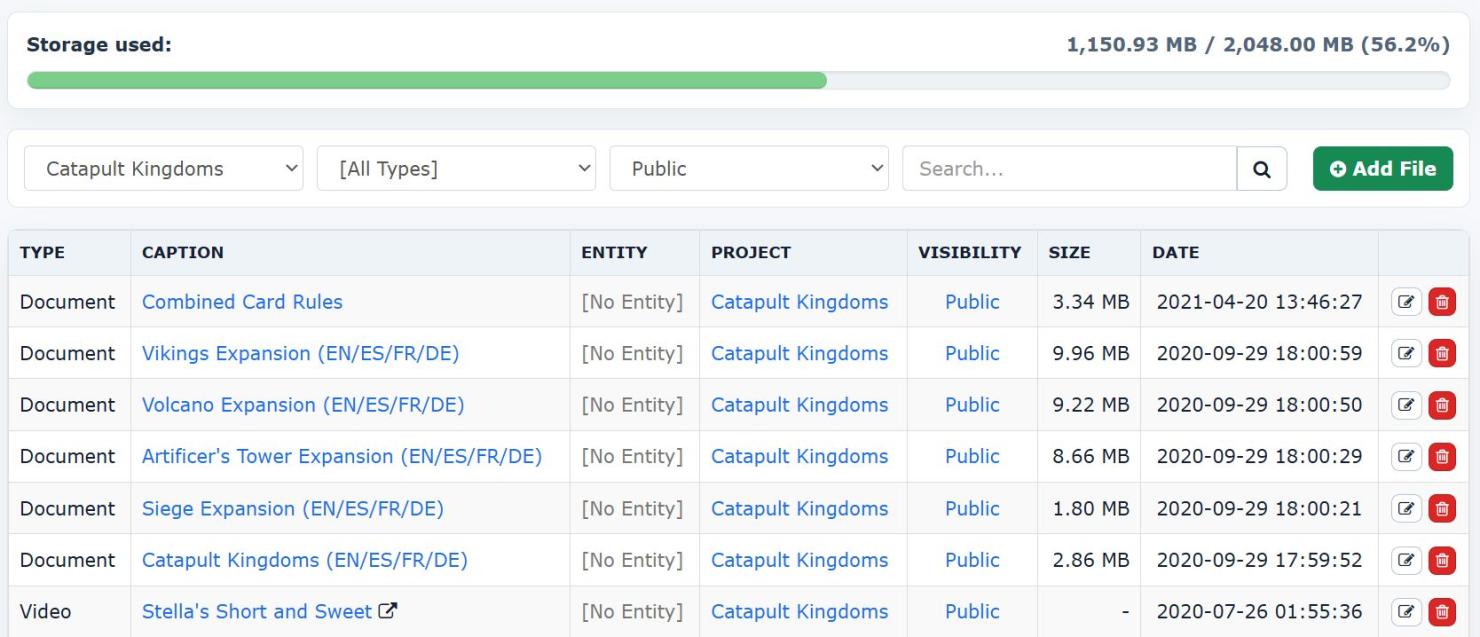
Once the files are uploaded and attached to your project, then when you go to your project's public page, you will see some new tabs that will appear at the top:

- Videos: It will contain the Youtube videos you have uploaded, with an embedded player so that users can start them immediately.
- Downloads: It will contain all the files (local or external) that link to downloadable content.
Managing Invoices
Keeping financial records organized is a critical part of managing your projects and relationships. In your CRM, you can attach invoices directly to any entity — whether it's a supplier, manufacturer, fulfillment partner, or retailer — and clearly track all sales or purchase-related activity.
An invoice isn't just a PDF.
If you put a $12,000 manufacturing invoice into Google Drive, Google Drive knows that you have a file called Invoice-1234.pdf.
It does not know that:
- you owe $12,000;
- you have already paid a $4,000 deposit;
- $8,000 remains outstanding;
- the invoice belongs to Manufacturer X;
- the cost relates to Project A.
Once an invoice is recorded in Hive, those become pieces of usable business information rather than information trapped inside a PDF.
How It Works
Each invoice entry includes a few key selections to help you manage and filter financial data with ease:
- Invoice Type: Choose whether the invoice represents a Sale (you’re billing someone) or a Purchase (someone is billing you). This distinction helps you maintain an accurate picture of both income and expenses.
- Status: Mark invoices as Paid or Not Fully Paid, so you can follow up when needed. This is especially useful when dealing with partial payments, deposits, or overdue balances.
- Entity Association: Every invoice is linked to a specific entity in your system. This allows you to see a full financial history per partner and makes it easier to generate reports or audits later.
By attaching invoices to your CRM entities:
- You gain a clearer understanding of your project costs and income sources.
- You create a transparent financial trail for each partner or vendor.
- You reduce the chance of missing payments or billing errors.
Financial Transactions
The Transactions section in your CRM offers a centralized view of all the payments registered across your invoices — whether incoming or outgoing. It’s the go-to place for reviewing your financial activity at a glance.
What You’ll See
This page displays a complete list of every payment that has been linked to an invoice within your system. It includes important details like the invoice number, amount paid, associated entity, and date of payment.
This visibility allows you to:
- Quickly verify what’s been paid and what’s still outstanding
- Track payments across all sales and purchase activity
- Support accounting, auditing, or budgeting efforts
How to Add a New Payment
- Go to the Invoices page in your CRM.
- Locate the invoice you wish to update.
- Click the Add Payment button.
- Enter the payment details (amount, date, notes, etc.) and save.
That’s it — the transaction will now appear in your list and be linked to the correct invoice and entity.
Using this system ensures your payments stay organized, traceable, and always up to date. It’s one more way your CRM helps you maintain full control over your financial records.