From Agreement to Signed Business Record
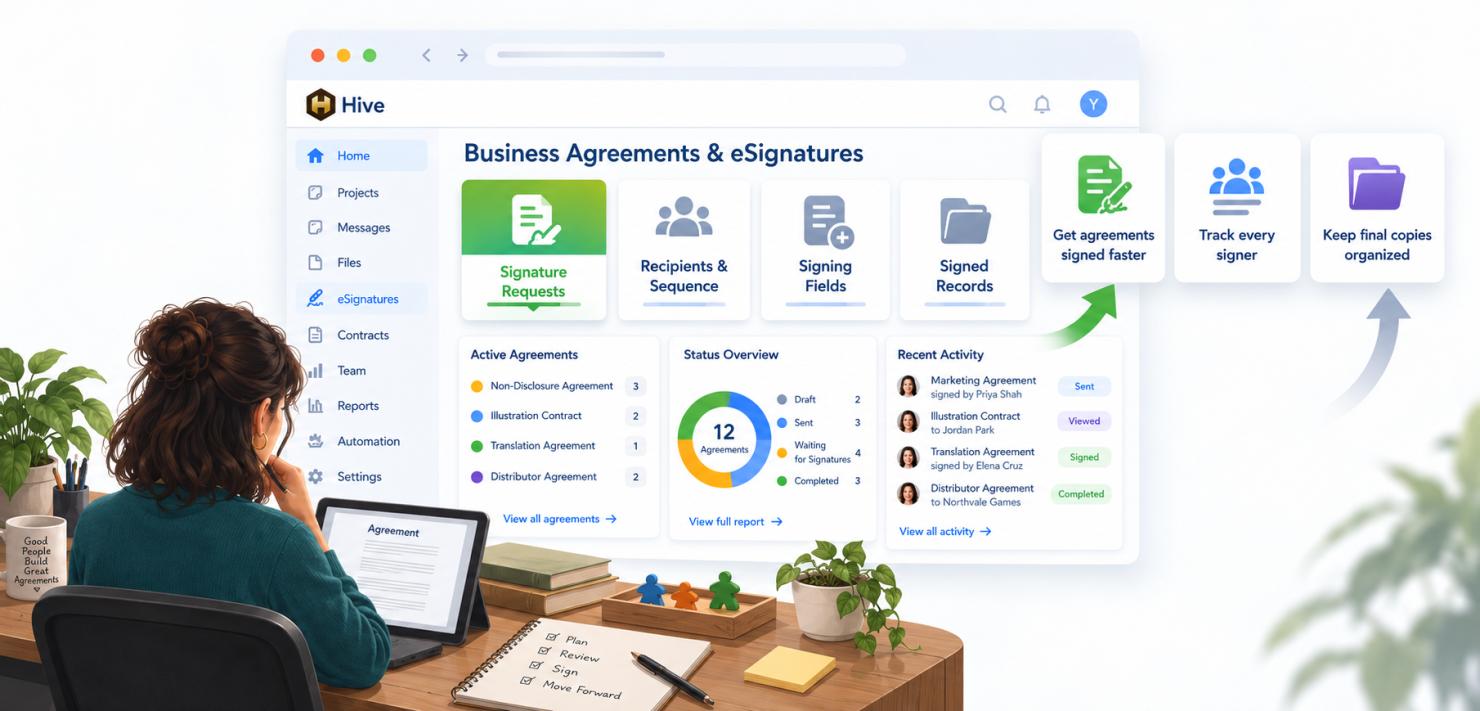 You have agreed on the production schedule with your manufacturer. The quantities are confirmed, the payment terms have been discussed, and the agreement is ready.
Before you move forward, you still need the right people to sign it.
That last step can create a surprising amount of administration: sending attachments, checking who has replied, following up with the remaining signers, and making sure your team keeps the completed version.
Hive eSignatures brings that process into the same workspace as your business contacts, project files, and other CRM records. You prepare a PDF, identify who needs to sign, and follow the request through to a completed document.
The practical benefit is visibility. You can see which agreements are ready to move forward and which are still waiting on someone.
Agreements Across Your Business
As a crowdfunding creator, you may exchange agreements with many different people:
- A manufacturer confirming production terms.
- An illustrator agreeing on the scope of commissioned artwork.
- A translator working on a localized edition.
- A distributor confirming the terms of a partnership.
- A service provider confirming deliverables and responsibilities.
These documents belong to ongoing relationships. Keeping their signing process in Hive helps your team understand the current position before making the next business decision.
For example, your production coordinator can check whether a manufacturing agreement is fully signed before arranging the next stage of work, without relying on someone else to search their email.
The Document and Its Signing Request
It helps to distinguish the PDF from the request you send around it.
The source PDF is the document you want people to sign. The signature request identifies the recipients, their signing sequence, and the information each person must complete. The signed PDF is the final copy created when signing is complete.
You can use the same source PDF for more than one request. Each request has its own recipients and progress, even if another request using that PDF is still underway.
Preparing Your Document
Start with the version of the agreement that everyone is expected to sign. Confirm the commercial details before sending it: the parties involved, scope of work, quantities, dates, payment terms, and any schedules or attachments that form part of the document.
Upload that version as a PDF in CRM Files. You can start the request from the file's signature action or select the PDF from within eSignatures.
Files linked from external storage cannot be used directly for signing. Upload the PDF itself so Hive can use it throughout the signing process.
Connecting the Agreement to Your Business
Before creating the request, associate the source file with the relevant entity and project when those relationships apply.
A manufacturing agreement might belong to both your manufacturer and the project being produced. A translation agreement might belong to the localization partner and the edition you are preparing.
The completed signed file carries the request's entity and project associations. This helps you find the agreement later alongside the other records for that relationship or project.
If you are still setting up your contacts and files, the Hive CRM guide explains how those records fit together.
Giving the Request Useful Context
Use the request title and message to make the purpose clear. The recipient should understand what they are receiving and what you need from them.
For example:
Please review and sign the manufacturing agreement for Project Aurora. This version includes the production quantities and delivery schedule we confirmed together.
Choose an expiry date that fits your timetable and a reminder frequency appropriate to the relationship. An agreement needed before a production booking may need a different deadline from a routine service renewal.
Creating a draft gives you time to prepare the recipients and signing fields before invitations are sent. Review the draft as a complete business request, including the document, the people involved, and the deadline.
Choosing Who Signs and When
Decide which individuals need to sign on behalf of the parties involved. Use their names and the email addresses at which they should receive the request.
You can select an existing CRM contact to fill in the recipient's details, or enter someone directly when they are not already in your contacts.
Recipients can be added, edited, or removed while the request is still a draft. Each change is saved as you make it.
All At Once or In Order
The Signature Sequence should reflect how the agreement needs to move through your business.
- All At Once: Everyone is invited without waiting for another recipient to sign. Use this when the parties can review and sign independently.
- In Order: Signing moves through the recipients in sequence. Use this when one person should sign before the request reaches the next person.
For example, you might have the supplier sign first and your company's representative sign afterwards. For an agreement where neither party needs to wait, All At Once avoids that extra dependency.
For In Order requests, arrange the recipients in the intended sequence before sending. New recipients are placed at the end; you can drag them into the right position. There is no need to arrange recipients for All At Once requests.
Assigning the Right Fields
Each field on the document belongs to a particular recipient. Place their signature where it belongs, then add initials, dates, or text fields where the agreement calls for them.
For a two-party agreement, the supplier's signature should be assigned to the supplier's representative, and your company's signature to your representative. Check that each person has their own signing fields on the correct pages.
You can position and resize fields directly on the PDF. Changes are saved as you work, so the draft becomes a visual check of what each recipient will be asked to complete.
Sending and Following Up
When the draft is ready, send the request. Hive sends email invitations according to the sequence you selected.
Recipients follow their individual links to review the document and complete their assigned fields. Depending on the signature methods allowed for the request, they can type or draw their signature.
Once sent, the request's setup is locked. This keeps the document and signing instructions consistent while the recipients are working through them.
Following Progress
Use eSignatures to see who has signed and who is still outstanding. The document remains available to view while the request is in progress.
Hive follows the reminder schedule configured for the request and tracks events in its audit trail, including sending, viewing, signing, and completion. This gives your team a shared record of the process.
A partially signed agreement still needs attention. Before treating the request as complete, check that every required recipient has finished.
For your business, this is a useful distinction: an agreement that has been sent is work in progress; an agreement that has been fully signed has reached the next stage.
When an Agreement Changes
If the terms need to change after sending, cancel the active request and prepare a new request using the revised PDF. This gives the updated agreement its own signing process instead of changing the document people were already asked to sign.
A recipient may also decline, or the request may reach its expiry date before everyone has signed. Review the reason for the delay or response before deciding whether to prepare another request.
Creating a new request from the same source does not cancel an earlier one. If the new request is meant to replace an active request, cancel the earlier request explicitly so recipients know which one to use.
Keeping and Managing Signed Records
When everyone has signed, Hive creates the final signed PDF, including a signing certificate, and stores it in CRM Files. Completion emails provide links to download the signed document.
The completed request shows the final PDF alongside the recipients and signing history. This becomes the record your team can return to when checking what was agreed and when the signing process finished.
The signed copy is stored as a private file. Keep it associated with the business relationship and project it belongs to so that the people managing that work can find it again.
Keeping the Final Copy
Before cleaning up older files, make sure your team knows which signed copy it intends to retain.
The original source PDF and the final signed PDF are separate files. Removing one does not automatically remove the other or erase the request's signing history.
A source PDF can be deleted once every request using it has been completed, all recipients have signed, and the final PDFs were successfully generated. A draft, unfinished request, or failed final-document generation can still prevent that deletion because the source is needed to finish the work.
The same source may have been used for several requests, so consider all of them when deciding whether it is time to remove the original.
Removing a Signed PDF
If you need to remove a completed signed document, use Delete signed PDF from CRM Files or eSignatures.
This permanently removes the stored signed PDF. Hive keeps the completed request, recipient information, and signing history, and records who deleted the PDF and when. The source file and other requests are left alone.
Download and retain any copy your business needs before deleting the file. The history of a signature request is useful for understanding what happened, but it does not replace the signed document itself.
With the agreement prepared, its recipients tracked, and the completed record kept where your team can find it, eSignatures helps turn a round of email follow-ups into a manageable part of your business workflow.