Calendar Overview
Give Creators a Simple Way to Schedule Meetings
Hive Calendar helps creators manage scheduling directly from Hive, without relying on scattered email threads or external booking tools. It gives each company a shared calendar, public booking pages, event-specific availability, custom questions, reminders, and meeting links in one connected workflow.
The goal is simple: let invitees choose an available time, let Hive handle the booking details, and keep the creator's team informed automatically.
What Hive Calendar Helps You Do
Use Calendar to:
- Create public booking links for different meeting types
- Control when people can book based on your availability rules
- Collect useful information before the meeting
- Approve, reschedule, or cancel bookings when needed
- Send confirmation, reminder, reschedule, and cancellation emails
- Create Google Meet or Zoom meeting links when connected
- View scheduled bookings alongside date-based Task Manager items
Instead of managing scheduling in a separate system, your meetings stay tied to the same company workspace where your projects, tasks, support, CRM, and operations already live.
Calendar Configuration
Calendar is managed at the company level. Each company has one shared scheduling calendar that permitted users can configure and manage.
Before using Calendar, make sure the correct company is selected in Hive. A permitted user can then open the Calendar page and set the public calendar name and description. These details appear on the company's public calendar page.
Granting Calendar Access
Company owners and company admins can grant Calendar access to other company users. Users with Calendar access can manage events, availability, questions, and bookings.
Only company owners and company admins can connect or disconnect external services such as Google Calendar or Zoom.
Edit Calendar Settings
Use the Edit Calendar option from the Calendar page to manage:
- Public calendar display name
- Public calendar description
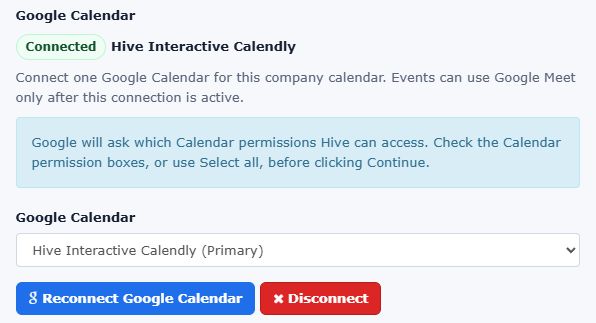
- Google Calendar connection (read more here)
- Zoom connection (read more here)
Keep the calendar description short and clear. It should explain what kinds of meetings invitees can book and what they should expect after submitting a booking request.
Managing Events
Events define what invitees can book. Each event type has its own title, description, duration, location type, timezone, availability, questions, and public booking link.
For example, you might create events such as:
- Introductory Call
- Fulfillment Planning Meeting
- Retailer Onboarding Call
- Manufacturing Review
- Support Follow-Up
Each event can include:
- Title and description
- Optional Host User display text
- Duration in minutes
- Event timezone
- Location type, such as manual location, phone call, Google Meet, Zoom, custom URL, or to be determined
- Buffer time before and after meetings
- Minimum notice before a booking can be made
- Instant booking or request approval mode
- Reminder email settings
- Optional confirmation redirect URL
- Active or inactive status
Inactive events can be previewed by permitted Hive users, but invitees cannot use them to create new bookings.
Availability and Time Zones
Availability is configured per event. This gives you precise control over when each type of meeting can be scheduled.
You can define recurring weekly availability, date-specific windows, and one-off overrides. This is useful when one type of meeting should be available only during certain campaign phases, business hours, or limited review windows.
Availability Rules
Use availability rules to define the normal times when an event can be booked. Rules can apply to specific weekdays or to all days, and they can optionally be limited by begin and end dates.
Date Overrides
Date overrides let you handle exceptions. You can block a full day, block a specific time window, or add a special available window for a specific date.
Time Zone Behavior
Each event has its own required timezone. Invitees can view available slots in their selected timezone, but Hive stores booking times internally in UTC and preserves the event timezone for consistent scheduling.
Use the event timezone that best represents the host or operating team responsible for that meeting.
Custom Questions
Custom questions help you gather context before an invitee books a time. Each event can have its own question set, so different meeting types can collect different information.
Questions can be used for details such as:
- Project name
- Campaign URL
- Company or organization name
- Topics to discuss
- Preferred contact details
- Multiple-choice qualification questions
Hive supports free-text questions and multiple-choice questions. Questions can be required or optional, sorted into the right order, and deactivated when they are no longer needed.
Booking answers are saved with the booking as snapshots. This means historical bookings keep the answers that were submitted, even if the question text or options are edited later.
Booking Meetings
Each company can have a public calendar page that lists active events. Each event also has its own direct public booking page.
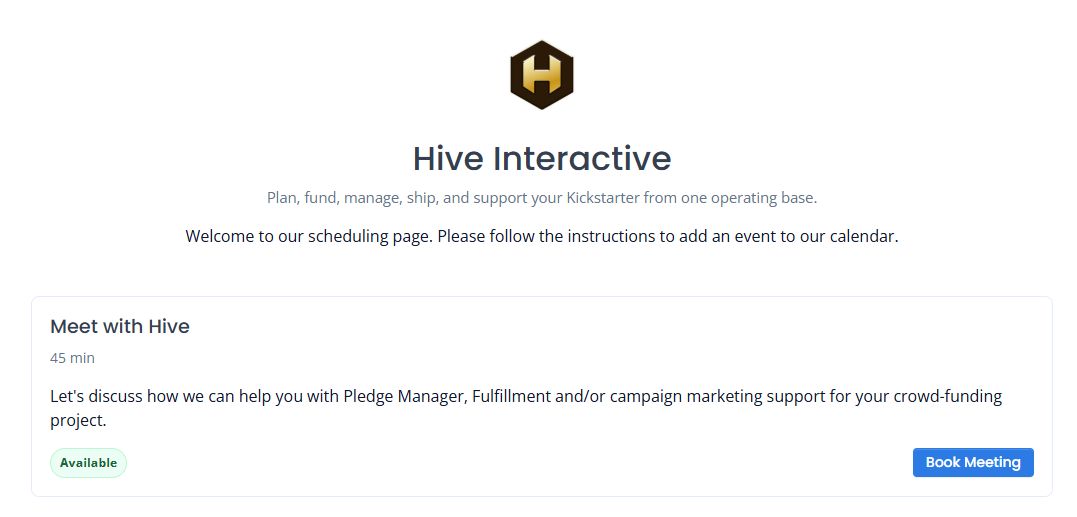
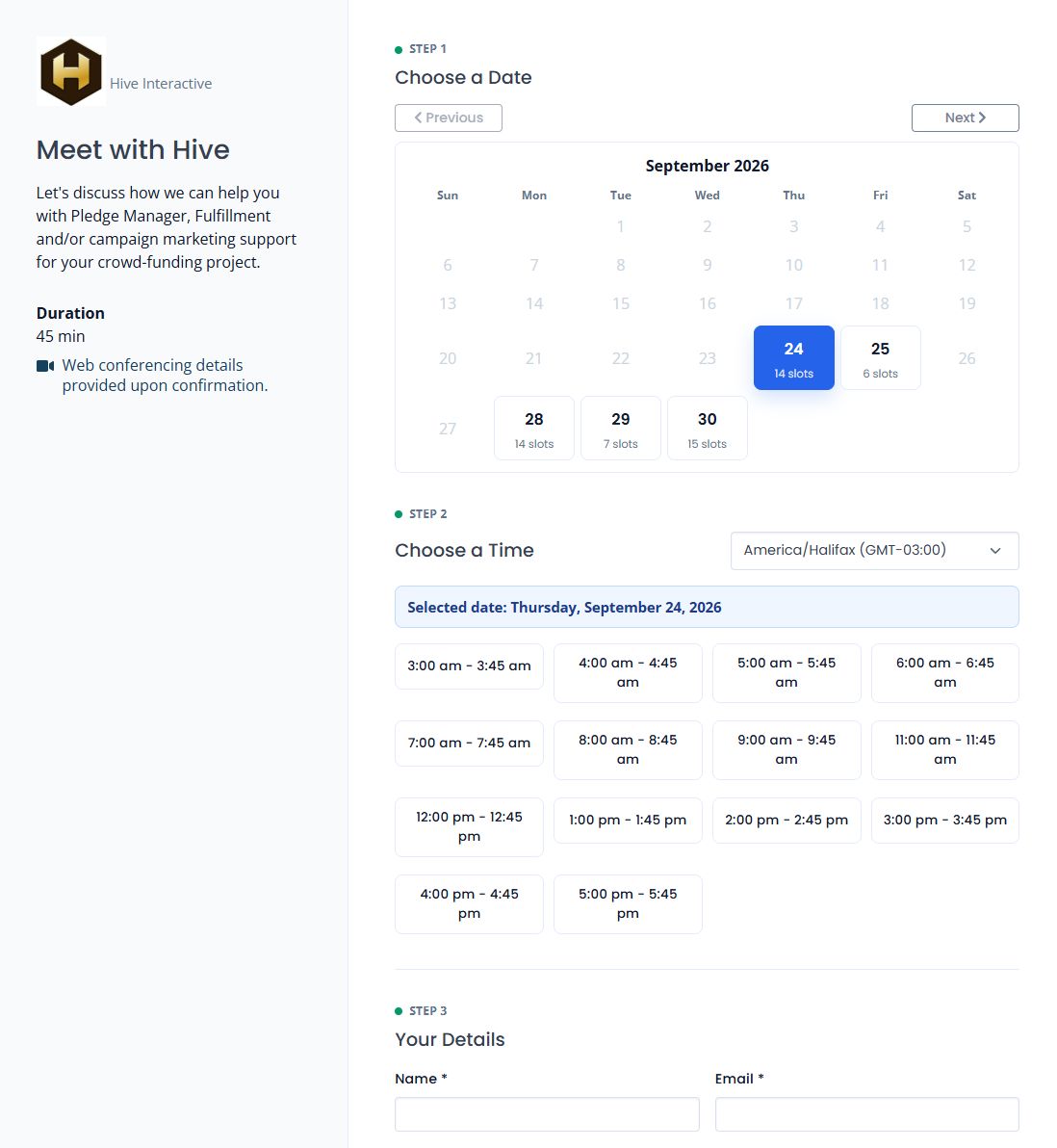
On an event booking page, the invitee can:
- Review the meeting title, description, host text, duration, and location information.
- Select their timezone.
- Choose an available date and time.
- Enter their name and email address.
- Answer any required custom questions.
- Submit the booking request.
Booking Confirmation
After submission, Hive checks the selected slot again before creating the booking. This prevents double booking if another invitee selected the same time moments earlier.
If the event uses instant booking, the booking is confirmed immediately. If the event requires approval, the booking is saved as pending approval until a permitted company user approves or declines it.
If the event has a custom confirmation redirect URL, Hive sends the invitee there after a successful booking. Otherwise, Hive displays the standard confirmation page.
Managing Bookings
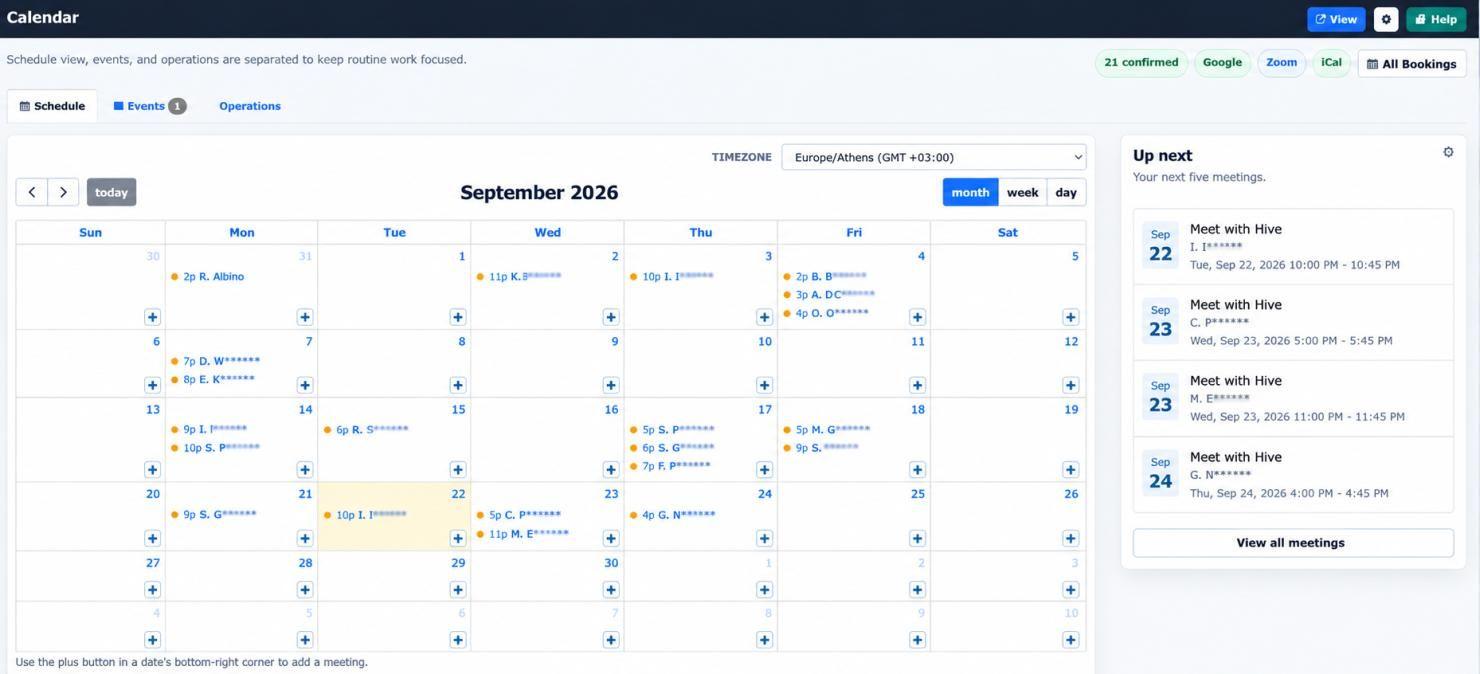
Permitted Calendar users can review upcoming bookings for each event. The booking list shows invitee details, date and time, status, and available actions.
Bookings may be:
- Pending approval
- Confirmed
- Reschedule requested
- Cancelled by invitee
- Cancelled by company user
- Completed
- No-show
Depending on the booking status, permitted users can approve, decline, reschedule, cancel, or join the meeting.
Invitees can also use tokenized booking links to manage their own booking. These links let them cancel or reschedule without needing a Hive account.
Company-side cancellation and rescheduling should include a clear reason. This keeps the booking history understandable for everyone involved.
Notifications
Hive queues booking emails so invitees and company users receive the right updates at the right time.
Calendar emails can include:
- Invitee booking confirmation
- Company booking notification
- Pending approval notices
- Approved or declined booking messages
- Reschedule notifications
- Cancellation notifications
- 24-hour reminders
- 1-hour reminders
Calendar Attachments
Confirmed booking emails include calendar-compatible data so email clients can recognize the event. Rescheduled bookings update the calendar event, and cancellations send cancellation calendar data when applicable.
Reminder Settings
Each event can enable or disable 24-hour and 1-hour reminders. Reminders are sent only once per booking and are reset if the booking is rescheduled.
Google Calendar and Google Meet
Company owners and company admins can connect a Google Calendar account from the Edit Calendar screen. Once connected, Hive can use Google Calendar to help avoid scheduling conflicts and to create Google Calendar events for confirmed bookings.
Google Meet Location Type
After Google Calendar is connected, event types can use Google Meet as their location type. When a confirmed booking is created, Hive creates or updates the Google Calendar event and requests a Google Meet link.
The generated Google Meet URL is stored with the booking and included in the booking details and invitee emails.
Busy-Time Sync
Hive syncs external busy events from the connected Google Calendar and uses them to block unavailable times. This helps prevent invitees from booking over existing calendar commitments.
If Google sync fails temporarily, Hive keeps the local booking valid and retries sync work through its background queue.
Zoom Integration
Company owners and company admins can connect their Hive account with their Zoom account to allow their calendar a seemless integration with the Zoom platform.
When a user books a new meeting through your calendar, then you can have the meeting generate a new Zoom Call URL, attach it to the meeting and send it to both you and the user.
Using Zoom for an Event
After Zoom is connected, edit an event type and select Zoom as the Location Type. Future confirmed bookings for that event type will create Zoom meetings automatically.
When Zoom meeting creation succeeds, Hive stores the Zoom meeting ID and join URL with the booking. The join link appears in the booking details and invitee emails.
What Happens If Zoom Is Disconnected?
If a company admin disconnects Zoom, or if the connected Zoom user removes the Hive app from Zoom, Hive clears the stored Zoom tokens and stops promising Zoom links for future bookings.
When Zoom sends a deauthorization notice, Hive changes that company's Zoom event types to To Be Determined. This prevents new invitees from booking an event that still claims to generate Zoom links.
Existing bookings keep their stored information, but future Zoom sync work will no longer run until Zoom is connected again.
1. Connecting to Zoom
o connect your Hive account to Zoom, you first need to go to your Calendar page, and then from the top left, open the setting menu and click "Edit Settings"

In the new form that will pop up, you will find a section on Zoom, with a big blue button called "Connect Zoom".
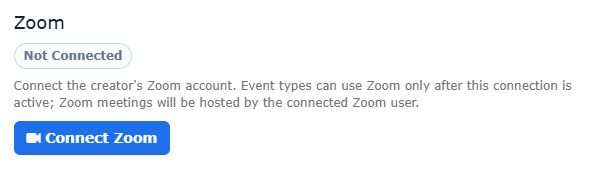
Click the button to start the process.
This will take you to zoom, where once you are logged in, the system will ask you to approve access to the permissions required to be able to create meeting URLs on your behalf. The screen will look like this:
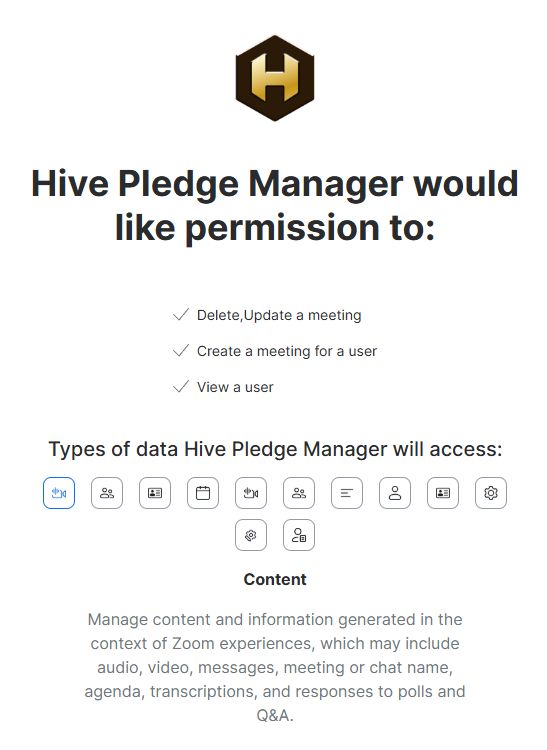
Scroll to the bottom of that screen, click the check box "Allow this app to use my shared app permissions", and then click the blue button "Allow".
If everything goes well, you will be redirected back to your calendar page with the message "Zoom Connected".
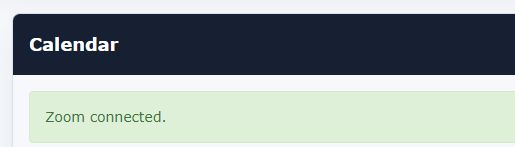
2. Using Zoom in Calendar Events
Once your Hive account is connected with your Zoom account, a new option will appear in the "Location Type" field of your "Event Types". The new option will be called "Zoom".
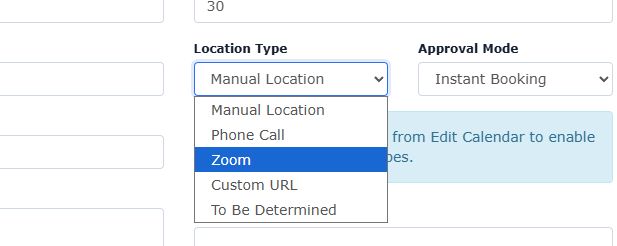
When you create an Event Type and you select that option, then the system will auto-generate a Zoom call URL for each verified calendar booking.
3. Disconnecting from Zoom
If you wish to disconnect your Hive account from your Zoom you have two options:
Option A: Disconnect from within Hive Calendar
Open your Calendar "Edit Settings" screen, go to the zoom section, and click the button "Disconnect"
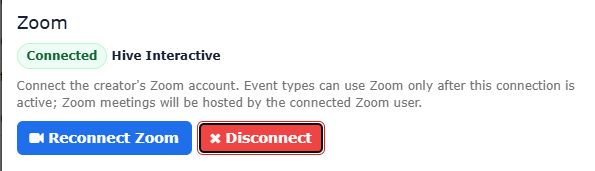
Option B: Log in to your Zoom Account, and remove the app from your Zoom Marketplace Added Apps page.
Both options above will disconnect your Hive account from the Zoom Account, and you will no longer be able to create Event Types with a location type "Zoom". Also, any existing Event Types that already have as location type "Zoom" will be switched to "Manual Location".
Calendar View and Task Dates
The Calendar page gives permitted users a visual view of upcoming bookings, event availability windows, and date-based Task Manager items.
This helps teams understand what is scheduled without switching between multiple screens.
Task Manager Display
Hive displays existing Task Manager items on the calendar when they have start or end dates. These task items are shown for visibility only; Calendar does not replace Task Manager and does not create a separate task system.
Use this view to see meeting activity and important internal dates side by side.
Operational Tip
Keep task dates current and event availability accurate. Calendar becomes more useful when your team can trust that the dates shown represent real work, real deadlines, and real meeting availability.