Creating Segments
Inside your project's "Fulfillment" tab, you can segment your backers by assigning "countries" to specific "Export Formats (Hubs)".
Warning: Although you have access earlier, this is a process that needs to be done after you have switched your project to "PM Closed (Final)" state. You can test it and use it before that, BUT remember that backers can still make changes, as such you have to return and re-export an files to get the final version to send to your hubs.
When you first visit this tab, you will find multiple backers in the "Unassigned" segment. As long as you see countries assigned in this segment, this means that there are backers that have NOT been assigned to any hub. Even if you have previously assigned a country to a hub, if a backer makes changes, their record will move to the "Unassigned" segment. That's why it is important to do this process after your PM is closed.
Choose the countries you want to assign to a specific hub, and enter their code (separating multiple countries by using a comma). Then choose the hub you want to assign them and click the button "Assign".
For example if you want to assign Australia (AU) and New Zealand (NZ) to the hub "Aetherworks", do as you see in the image below:

FAQ: I see "Unassigned" backers although I have already assigned the country to a hub. Why?
We have mentioned this before, but it is worth explaining again. When you assign a country to a hub, only the backers that are at the moment of the assignment "Verified" will be moved to that hub.
This means that if a backer makes a change in their pledge, or if a backer was "Open" and completed their pledge manager after your assignment, then they will be moved to the "Unassigned" section.
This is done on purpose, because you are supposed to export your "Backers" lists ONLY after your pledge manager is in the "PM Closed (Final)" state. So, we would either have to not allow the export before that state (like Kickstarter does), or we needed to give you a way of knowing that there are NEW backers that you have not assigned to hubs, and as such you need to assign and re-export.
Exporting Data
1. Overview
Once you have assigned all your countries to hubs your segments may look something like this:

Your segmentation depends on your fulfillment strategy. The above example shows a project being fulfilled from multiple hubs around the world.
You will notice that each segment has its own download button to export the: Backers, SKUs and Packing List. Since each hub has its own format they expect the data, our system makes sure to export your backers information to the appropriate format.
Although we already support the format of most of the major fulfillment hubs, if you use one that is not on the list do not worry! 99.9% one of the existing formats will work for you. If you can not find one that works for you, simply send us an email and we will help you out.
2. Export in CSV
When the data is exported in CSV format, it always uses UTF-8 encoding. Please note that UTF-8 is important so that characters from any encoding can be displayed correctly (Asian, Arabic, European characters etc).
If you want to open the file and check, then depending on the software you use you may need to follow specific instructions to do it right:
- Google Sheets: Using the online Google Sheets tools, you simply need to upload your file. The application will handle the rest.
- Open Office: When you double-click to open the file, Open Office will show a dialogue prompting you to select the encoding used in the file. You need to select the "UTF-8" encoding from the list, and make sure that the "Separator" is set to "Comma". Look at the image below for more information:

- Microsoft Excel. Do NOT double-click and have Excel open the file on its own. The default setting will definitely mess up the data format (even if it is not crystal clear when you first open it). You need to open a new blank sheet in Excel, and then use the "Import Data" function of excel to select and open the CSV file. When prompted make sure to select the "UTF-8" encoding and the "Comma" separator.
3. Export Packing Slips
Instead of exporting data in CSV, you may choose to create a packing slip for each of your orders. The system can be configured to create a PDF for each order with content that help you pack each order, so that you can prepare your batches before printing and sticking the courier/shipping labels on it.
The main idea here is that if you have many orders that are unique, you can print a piece of paper that describes the content of each order. Then the person responsible for packaging, can get that piece of paper, prepare the order, and place the paper on it, so that when the courier labels are ready for attaching it is easy to locate and find.
You can do that by selecting "Packing Slip" in the "Output" option.
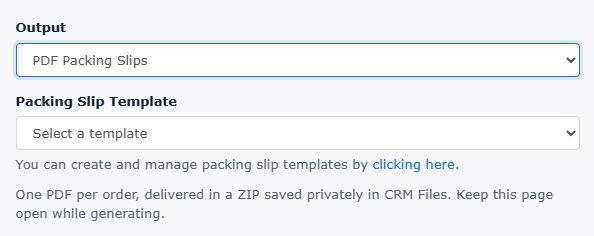
If you already have created a template for your packing slips, you can select it from the drop down. If this is your first time then you should follow the onscreen instructions and go to the Template Designer page, to create your template.
In the template designer, you can create a template for your packing slips, by choosing the size of the packing slip, and placing the various available fields in the layout that suits you.
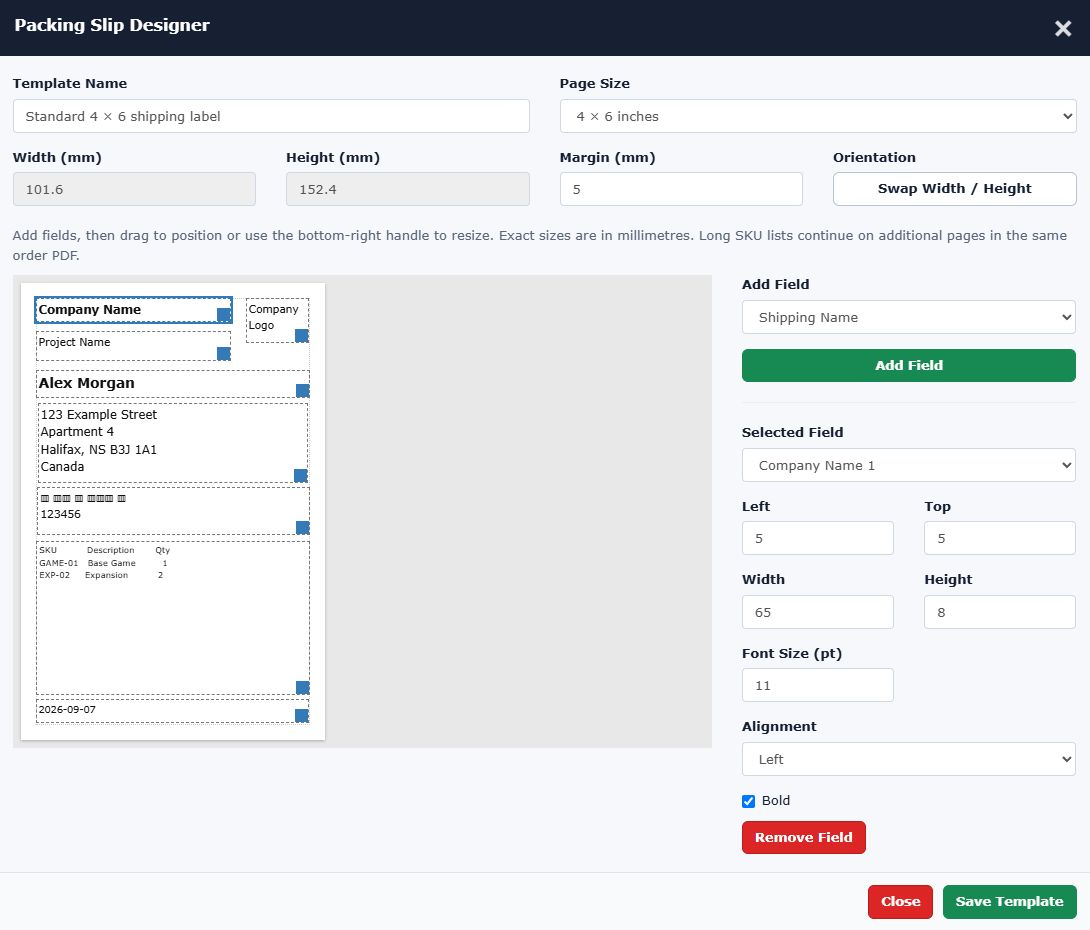
Fields that you can use in your design include:
- Company Name
- Company Logo
- Project Name
- Backer's Shipping Name
- Backer's Address
- Barcode (that represents the Hive Id for the backer's pledge)
- SKU List
- Date of the packing slip's generation
Once you have created the template, you can "Go back to Fulfillment" select it and download a zip file with all the order slips of the backers you want.
4. SKU Consolidator
The SKU Consolidator is Hive’s smart solution for simplifying complex SKU structures during fulfillment. Instead of juggling multiple overlapping SKUs from bundles, add-ons, or reward tiers, you can define rules that merge them into a single “Target SKU.”
This keeps your fulfillment exports clean, reduces errors, and ensures manufacturers and shipping partners receive accurate, streamlined data. Whether you’re managing bundles, planning production, or just need clearer reports, the SKU Consolidator saves you time and minimizes mistakes, helping you deliver a smoother fulfillment process.
Please read this article for a more detailed explanation on how the SKU Consolidator works.
Importing Tracking Information
Your job as a creator is not done until every single of your backer has been assigned a tracking number for their rewards. You need to keep on talking and bugging your fulfillment centers until they send you a tracking number for ALL your orders.
Depending on the fulfillment center you are using, the final format of the tracking information you will get varies. To upload that information into our platform you will need to create a CSV file (Comma separated values) that consists of 4 columns:
- First is "Order Id": This can be filled with either the Hive ID of the Backer which can be found in the "Backers" tab of your project (this information is exported in most export formats, so the fulfillment center does have it). Or you can fill it with the backer's email address.
- Second is "Tracking Number": If a backer has more than one Tracking Numbers, then these should be put in this column separated by comma.
- Third is "Service": This is optional and you can leave it blank. Usually here you add the name of the courier service you will be using. e.g. FedEx, Canada Post, DHL, etc
- Fourth is the "URL": This is also optional and you can leave it blank. There is a chance that the fulfillment center will give you a tracking URL where someone can visit to see the tracking information of the order. If you have it then you can fill it in this column. If this is empty, then the system will try to identify the "Service". If it is one of the known ones (FedEx, DHL, ACS, Canada Post, Australia Post) then it will automatically create the URL using the tracking number provided.
You can download a CSV template by clicking here.
Updating Tracking
If for any reason you made a mistake and you need to re-upload tracking information, then the system will overwrite the existing tracking numbers with whatever you upload again.
Notifying Backers
You do have the option to check the checkbox and have the system notify each backer for whom you upload a tracking number via email. We strongly recommend you do NOT use this functionality. Most of the time the fulfillment centers will either take too long to send you the tracking numbers or even worse they will send you tracking numbers that end up in a "Shipping Label Created" page that doesn't give any more info.
Given the fact that nowadays all fulfillment centers will send an email to the backer when they process the package, there is no reason to spam them too.
Best practice is to make a Kickstarter update informing them that "Fulfillment has finished and you can find your tracking information by accessing your pledge in Hive."
Digital Content Backers
If in yoru campaign you had Digital only pledges, then once you deliver the digital content to them, the best thing you can do is also "Upload Tracking" in the "Fulfillment Tab" of your project.
Since there is no actual tracking code for this pledges, you can simply add in the Tracking Number the words "Digital Delivery".
When you upload this information the backers' status will change to "Shipped" and you will be golden!