Backer Support Ticketing
Hive’s backer support ticketing system keeps crowdfunding questions, missing-item reports, and damaged-item requests connected to the creator and project. Use it to record conversations, arrange replacements, request payments, and track replacement shipments. Slack integration also lets your team receive and answer tickets through Slack.

1. Communicating with Backers
A crowd-funding campaign, by nature, will expose you to many backers from all around the world. Each one of them will have various degrees of experience with crowd-funding campaigns.
Some of them may be "Super Backers", having backed multiple projects over the course of many years, while for other you may be the first project they have ever supported!
You need to be able to communicate with all of them, making sure all their needs are met, and keeping your community happy! Your community is the most important aspect of your campaign. They are your investors, they are the people who can promote you and help you grow, or if left disappointed tarnish your reputation.
2. Keeping a Support Audit Trail
Inquiries, questions, requests, and complaints may come from various sources and different people, in different formats. Some may send private messages through the Kickstarter messaging system, others may find your website and fill out a contact form or send an email. Some may also send messages through Facebook and/or Twitter.
Some of them may do, at the same time, ALL of the above!
You need a way to collect information, streamline the process, and ensure that every request is recorded and addressed. That's where our embedded Customer Support Ticketing System comes into play.
When you use Hive, then your response to all backers that try to communicate with you outside the Hive platform, should be:
"Please, access your pledge through our Pledge Manager (https://www.hiveinteractive.net/pledgemanager) and click the big dark button with the title "Contact Support", to create a ticket. Our Support Team will then be able to help you out."
With this simple response, you immediately streamline your entire communication process. The backers will use a system that records, keeps track of and handles all their requests, making sure than nothing falls through the cracks.
Backer Support Ticket Types

1. Backer Questions and Requests
This type of ticket is typically created when a backer or customer wishes to seek clarification about your campaign. It could involve inquiries about shipping costs, deadlines for completing the pledge manager, or other related matters.
When creating such a ticket, the backer or customer may upload up to 3 attachments, such as photos or PDF files, and also provide a message directed to you.
2. Missing Item Support Tickets
When a backer or customer receives their pledge and finds that an item is missing, they can fill out a ticket of this type. They should provide their full shipping information, photos of the box content they received, and a message directed to you.
It's advisable to always request photos, even in the case of missing items. Photos serve as evidence that the request is legitimate. Additionally, if you offer multiple different products, it ensures that what the backer claims they are missing is accurate. As the creator of the project, you can easily identify from a photo what went wrong with the packaging or packing.
Furthermore, sometimes you may be eligible for a claim with a shipping company, and in such cases, you will need to provide photos as evidence.
3. Damaged Item Support Tickets
This type of a ticket is the same in content as the Missing Items type. But, it is important to be able to distinguish between Damaged and Missing Items.
Missing items is usually either a problem with the factory (where they did not put an item in the box), or a problem with the fulfillment hub you are using (where they did not place an item in the shipping package).
On the other hand, damaged items are almost exclusively issues with the courier companies, who (unfortunately) mishandle the final delivery of your rewards.
Within our platform you can distinguish between the two, and you can get separate statistics/metrics to be used in future projects for a more accurate project budget.
Manage Backer Support Tickets
When a backer/customer creates a new ticket, you will receive an email notification from our System. At that point you can access our platform and go to the "Customer Support" section.
In there you will find all the tickets from your customers. The ones that are unread will be in bold.
A new ticket will always have the status "Open". By clicking the info (i) button you can see the details of the ticket. Every time you respond your answer is recorded, every time the backer/customer responds back, their answer is also recorded.
Your goal should be to "Complete" all tickets by handling them appropriately. A ticket is completed only if its status is: Shipped, Delivered or Closed.
Whenever you reply to a customer, you must choose the status of the ticket based on the outcome of your response. There are several different possibilities:
- In Progress: You should set the ticket in status "In Progress" only if you need more time to process it. For example a backer asks for a shipping quote, and you respond to them that you will need a couple of days to hear back from the warehouse. You leave the ticket "In Progress" while you are "working" on getting the information to respond to your backer.
- Closed: When you respond to the backer and you do not expect anything else from them, then you should close the ticket. This means that from your point of view, the ticket has been handled. The backer can always respond and re-open the ticket if they feel that they need more information from you.
- Response Needed: Whenever you need a response from the backer you need to change the status to "Response Needed". When the ticket is in this state, if the backer has not responded, the system will automatically send an email reminder in two days, and the system will automatically "Close" the ticket if the backer doesn't respond after another two days. All changes of status are recorded, and you need to be able to prove to your backers that you did what they asked. It is their responsibility to also respond in a timely manner to help you help them.
- Request Payment: If you need to receive a payment before processing the ticket, then you can do so using our system. Simply change the status of the ticket to "Request Payment", enter the amount you want to request from the customer and a small message. The customer will be asked to pay using Paypal that amount. For this feature to work you must add a Paypal email in your Account Information page. The backer will be redirected to Paypal and will pay directly to your Paypal account. We do not charge a fee for this feature/service. It is free! Once the payment is completed, your ticket will be updated and you will be notified via email. An example of such a case is when you have a backer that forgot to complete their Pledge Manager, and they reached out to you to get their pledge. You can request from within our platform the payment, so that you keep a record of the discussion and the transaction for future references. We do not apply any transaction fees to this payment. The money go directly to your Paypal account, and you only pay Paypal whatever fees they charge you.
- Shipped: If you packaged and shipped a replacement or a missing item, then you change the ticket to this status, and provide the relevant tracking information.
Be very careful and precise when you respond to your backers. Make sure to select the correct new status so that the system can take over and help you wrap things up.
Do not leave tickets unanswered! Since you are crowd-funding, you are already exposed in the internet community. Not answering to your backers will create doubts, people will start feeling nervous, and then they will start posting negative comments everywhere in an effort to catch your attention.
Please stay on top of your tickets, and manage your backers. They are your biggest asset!
Replacement Orders and Missing Item Management
1. Add Items to Replacement Orders
For tickets of type "Missing Item" or "Damaged Items", you will probably need to attach certain items that you are expected to ship to the backer as replacements.
You can add such items by clicking the button "Add Item To Request". When you do so, you will be asked first the quantity, and then the description of the item. Try to keep the descriptions short, so that they are helpful later when you are trying to get reports.
Those items are NOT visible to the backer. They are only for your own internal use.
2. Update Replacement Shipping Addresses
The "Missing Items" and "Replacement" tickets, have shipping information attached to them. You can click the button "Update Address" to update that information in case the backer requests so.
If a ticket starts as "Question" and then you realize that you will need to send an item to the backer because they need a replacement, then you need to first change the type of the ticket.

To do so, click on the type of the ticket in the main screen, select the new ticket type and press the button "Update". Once the ticket's type is changed you will be able to update and add Shipping Information.
3. Add Replacement Tracking Information
When you have the Replacement or Missing Item package ready, then you can change the status of the pledge to "Shipped". By doing so, more fields will be revealed to allow you to add tracking information to this ticket:

The "Shipping Cost" is a number that is visible only to you, not to the backer. You need this so that you can collect the information, and be able to figure out at the end of the project's fulfillment how much money you needed for the replacements. This will help you budget better your next project.
If you have a tracking number from one of the known courier companies (DHL, FedEx, Canada Post (CA), Australian Post (AU) or Elta), then by entering the tracking number, you can click the relevant button and the system will automatically generate the Tracking URL and Company Information.
If you have a tracking number from a different provider, then simply manually fill out the rest of the fields.
Once you submit the ticket, the backer will be able to see the tracking information in their pledge.
4. Replacement Item Requirements and Ticket Reports
At the top right of the screen, you will find two buttons that give you two different choices of getting reporting for your tickets and requested items:
- Needed Items: When you click this button you will get a popup that based on the current filters for your tickets (for example if you filter by project and/or type), it will tell you how many of each "Requested Item" you need for the currently selected tickets. this is useful if you want to see quickly what you need to prepare for all "Ongoing" tickets.
- Export: With this button you can get the information of your tickets in ".csv" format. You can easily process this in Microsoft Excel, Open Office Sheets, Numbers or Google Sheets.
Handle Backer Refund Requests
See How to handle backer refund requests for refund guidance.
Once you request a refund for your backer, you should change the ticket's status to "Closed", by adding the following message:
We have requested a refund for your pledge and is being processed. Once it is completed you will be notified by the Pledge Manager and your pledge's information will be updated accordingly.
Slack Integration for Backer Support
1. Overview
If you are using Slack, then you can connect your account with your Hive company account, and then manage the support tickets through Slack!
This elevates your response process to a new high as all the following become available:
- when a backer opens a ticket, that information is pushed to your Slack channel as new discussion thread.
- when you reply through Slack your reply is send to Hive, stored as a regular response to the ticket and then Hive notifies the backer about it.
- the integration supports attachments from both the baker to you, and vice versa.
With this integration you can even use the Slack Mobile app to check and answer your tickets, on the go, from anywhere!
2. Configuration
To configure Slack for your Hive account, you need to go to the "Account Information" page in the tab "Advanced". There you will find the section "Slack Support Integration".
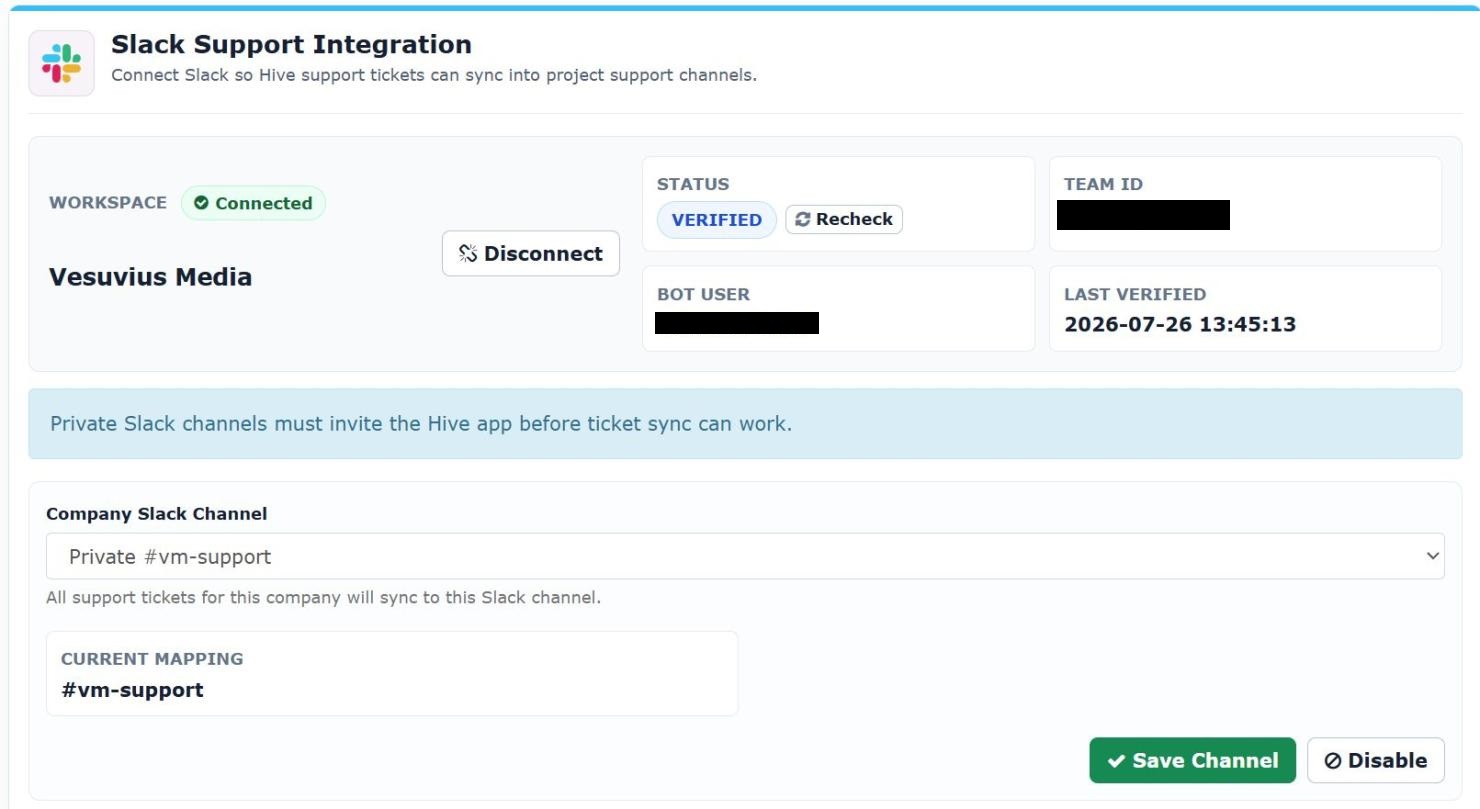
You will need to do the following:
Step 1: Click the button "Connect" and follow the on screen instructions to add the "Hive App" to your slack account.
Step 2: Create a private slack channel in your Slack account.
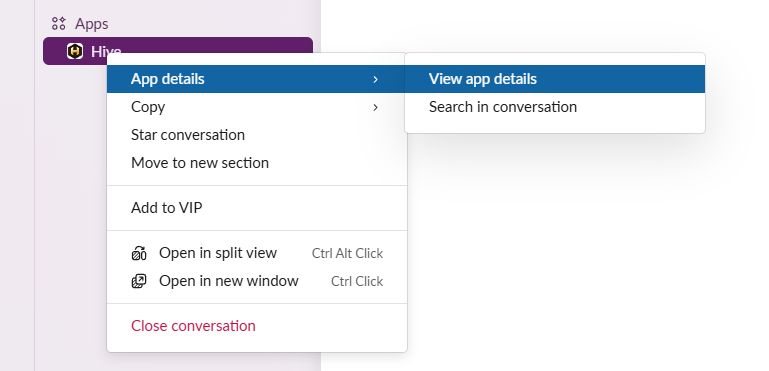
Step 3: Add the Hive App to the private channel you just created. You do that by right-clicking on the app in Slack, select "View App Details", and in the popup select the "Add this app to a channel".
Step 4: Refresh the page, and the Slack Channel should be available in the dropdown menu. Select it and click "Save Channel"
And you are now ready!
3. Usage
Once you are connected with Slack, whenever a backer opens a ticket, that ticket will be send to your Slack. You can then Reply In Thread and that reply will be send back to the backer and it will be recorded within the Customer Support system in Hive.
That way both systems stay in synch, and you can use them interchangeably.
When you write a response to your backer through Slack, you can add a command as the last standalone sentence in your message, that will make the ticket's status change. Here are the available commands:
- Close: It will change the status of the ticket to "Closed"
- Closed: It will change the status of the ticket to "Closed"
- Response Needed: It will change the status of the ticket to "Response Needed"