Create a Backer Survey
What Is a Backer Survey?
A backer survey collects the answers you need before a backer completes their pledge. In Hive, survey answers can also change the selected pledge, add paid add-ons or freebies, and select product variants such as language, size, or color.
Show questions to specific backer groups, or use conditional logic to make later questions depend on earlier answers. Hive calls this branching workflow a Survey Decision Tree.
Activating Survey for your project
To add the functionality of a survey to your project you need to go to your project's "Basics" tab and enable the "Has Survey?" option.

Doing so will make a new tab available to your project with the caption "Survey". In there you will be able to create and tailor the survey to your needs.
Make it a Wizard Layout
By default, each question you add in the survey is presented to the backer in a list, one question below the other, one page. In the "Advanced" section of the "Basics" tab in your project, you can activate the "Survey uses Wizard layout" if you want to the questions to be present in a "Wizard" layout, one question at a time. Usually if you have only one or two questions per backer, it is best if you present them in one page. If you have multiple questions it is best if you use the "Wizard" layout
Show Survey Questions to Specific Backers
When you create a new question, you can define certain filters for it. These filters allow you to create questions that are only shown to specific type of backers.
For example you could create a question that only backers of specific pledge level will see.
The available filters are:
- Only for Backers: This option allows you to filter the question to backers based on when they pledged: Early Bird Backers, Non Early Bird Backers, Kickstarter Backers, Late Pledge Backers.
- Only for Pledges: This option allows you to select one or more pledges. Only the backers that select one of them will see the specific question.
- Only for addon: This option allows you to select one or more add-ons. Only the backers that have selected one of these addons will see the specific question.

Of course you can combine more than one of the above filters in the same question to target more specifically your backers. For example "Only for Kickstarter Backers that also have selected the X pledge".
Backer Survey Question Types
1. Text Questions
Questions of type "Text" are very simple. For these you ask a backer to fill out by typing their response.
These questions are usually used in the cases below:
- Ask the backer the name they would like you to use in the Credits section of your product.
- Ask their Discord handle to add them to your channel.
- Ask them to leave you a comment.
Usually this type of questions are not marked "Required", so that a backer can leave them blank if they do not want to give an answer.
2. Multiple-Choice Questions
Questions of this type can be have from simple Yes/No answers, to answers that also adjust the backer's pledge!
Here are some cases where you will need such a question:
- Asking the backer if they would like to be included in your newsletter.
- If the backer is entitled to free item (e.g. Early Bird) and there is a choice among multiple, then you can ask them to choose the item they want to get for free. Based on their choice the relevant addon will be automatically added as a "Freebie" to their pledge.
- If you have an item you would like to upsell, then you can present it as a question to the backer, giving them some information about the item, showing a picture and then asking them if they would like to add it to their pledge. If they say yes, our system will automatically add it as an addon to their pledge.
- If you are giving clothing, the backer may need to select color and/or size.
In all of the above case, you will need to use a "Multtple Choice" type of question, and configure it correctly.
When you create such a question, you need to add "Options" to it. Each such option corresponds to a possible answer the backer may select for this specific question. You must have at least one option defined.
Configuring Options
When defining an option you must set a caption. This is the text that describes the main choice a backer is making. For example it could be "Yes" or "No" in a question where you expect a Yes/No answer, or "I would love that!" or "No, thank you!" in a question where you expect the backer to tell you if they would like to add an addon to their pledge or not.
You may also define a "Description". This is optional, and the text you add in this field will be displayed under the option's caption.
Then you have three different types of actions you can tell our platform to perform if the backer chooses the specific option:
- Requires Text Response: By activating this feature, if the backer selects it, then they will be prompted to enter a text into a field. This is useful if you want to ask them to fill in an email or a name, but only under certain circumstances.
- Change Selected Pledge To: If you define a pledge in this field then our platform with change the backer's selected pledge to the one you selected. This functionality can be used to upgrade a "Standard Pledge" backer to the "Deluxe Edition" pledge.
- Add as Freebies: You can choose add-ons to be added as freebies to the backer's pledge. Freebies are free for their base cost, but the backer will still need to pay shipping for them. If the backer's pledge includes item of clothing, this is the way to ask them for the size, so that you add as a freebie the correct addon that corresponds to the SKU of the selected size.
- Add as Add-ons: The add-ons you select will be added to the backer's pledge. This is a good way to upsell an addon.
Conditional Survey Logic and Decision Trees
Conditional survey logic shows or hides a question according to a backer’s earlier answers. In Hive, enable Survey Decision Tree and use Decision Tree Filters to define these branches. This workflow requires Wizard Layout, which presents one question at a time.
 To understand how this works, we first need to point out that when you activate the said feature, then the survey will have to use the "Wizard Layout". This means that each question is displayed on its own to the backer. The backer makes a choice and then clicks the button "Next".
At this point, the result of the choice they made, is immediately applied to the pledge. For example if they upgraded their pledge, or added an addon/freebie, that is resolved immediately, then they are moved to the next question.
With that in mind, you can now select "Decision Tree Filters". By selecting a previous question's answer, you tell the system to only show the specific question if the user selected one of the options you add in the list.
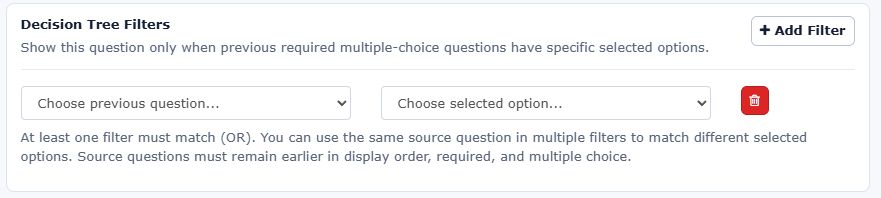
This essentially means that you can create a "decision tree" of choices and guide the user to see things based on their choices.
For example you could have first a question A with answers A1 and A2, and then create question B that is only visible if A1 was selected, and question C if A2 was selected. This means that each backer will see only two questions, and the second will depend on the answer in the first!
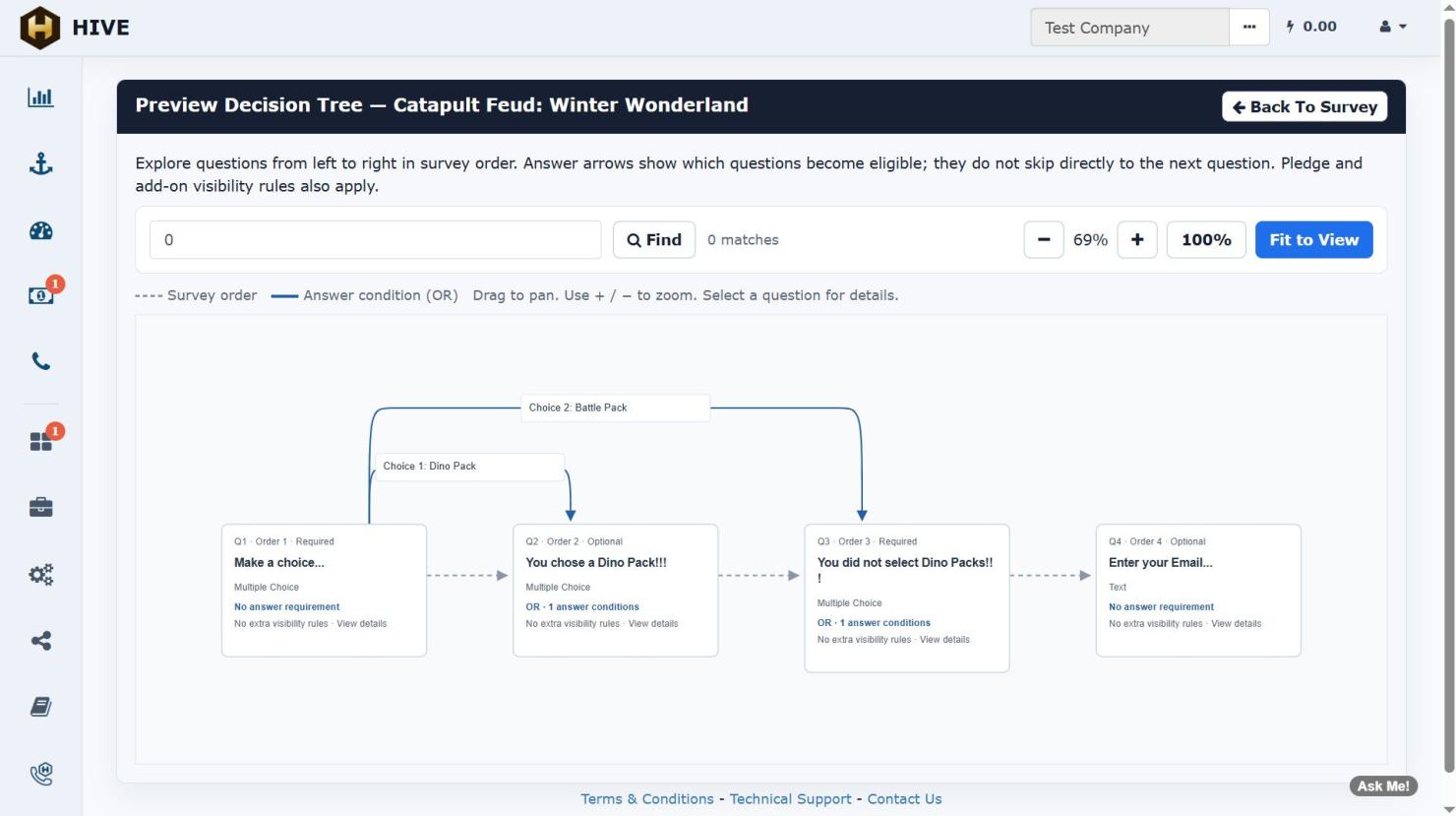
To help you debug and monitor you tree logic, we have a build in visual representation tool you can access by clicking the button "Preview Decision Tree"

That will open a new view of your entire tree, where you will be able to see the sequence of questions, and the link based on the choices of the backer.
Backer Survey Examples
1. Use the Survey as a Backer Tutorial
You can create a question of type "Multiple Choice", with the caption "Important Information" and then add a text like this:
Thank you for your support! The items you pledged for on Kickstarter are already in your cart.
Feel free to add extra items from the upcoming Add-ons page!
If you purchased add-on items through Kickstarter, these will also automatically be in your cart and you can confirm them on the next screen.
You should mark the question as "Required" and add only one "Option" with the caption "Got it!"
This will force the backer to actively select the "Got It!" option before being able to continue checking out.
2. Upgrade a Backer’s Pledge
Create a "Multiple Choice" type of question and:
- add the caption "Upgrade to Deluxe Edition!"
- add a description like this: "For only $30 more you can upgrade to the Kickstarter Exclusive Deluxe Edition and add another expansion and exclusive content to your pledge. Would you like to upgrade?"
- set it as "Required"
- Choose in the "Only for Pledges" filter the Standard Edition's pledge
- Add two options. One with the caption "Yes, please upgrade my pledge!" that in the "Change Selected Pledge To" has the Deluxe Edition selected. And one with the caption "No, keep the regular edition."
You should add also a cool image in the first option. The image should show the extra content the backer will miss out if they do not upgrade to the Deluxe edition.
3. Choose Product Variants: Language, Size and Color
If your product has multiple languages or comes in different sizes or colors, then you can use the survey to force your backers to make a choice about the specific variation of your product they want.
For example, let's say you have a game that is available in 3 languages (English, Spanish and German). How do you set this up?
Step 1: You need to create an SKU for EACH of the languages.
Step 2: You create an add-on for each of the languages, and you assign the relevant SKU to it. Please make sure that the photos of these add-ons have a flag to showcase the language. Do not assume that the backers will read the title of the add-on. Adding a visual for the language helps a LOT to avoid mistakes.
Step 3: You create a pledge that you mark as "Virtual". You assign NO SKU or add-on to it. In the description you mention that the backer will be able to select the language they want during the finalization of their pledge.
Step 4: You create a "Multiple Choice" question, with a title like "Choose the language of your game", and you make it available only to backers that have selected the specific pledge. Then you add, to this question, one option per language and you make sure that if selected each option adds as a "Freebie" the add-on for that language. When you add an item as Freebie, the backers do not pay for its cost, but the weight will be added in the shipping calculations (that's why we wanted you to remove the shipping from the pledge).
And you are done!
The above process ensures that your backers will be forced to select a language during check out, while at the same time giving you flexibility in the definition of add-ons and SKUs which will help you have crystal clear fulfillment exported files, that will minimize the risks of mistakes during the final delivery of your products.
For the reward and SKU setup behind these choices, see Configure rewards and product variants.